Edit your restaurant menu while the table QR stays the same
Keep a restaurant QR code in place while changing dishes and prices by publishing edits to the same stable menu address.
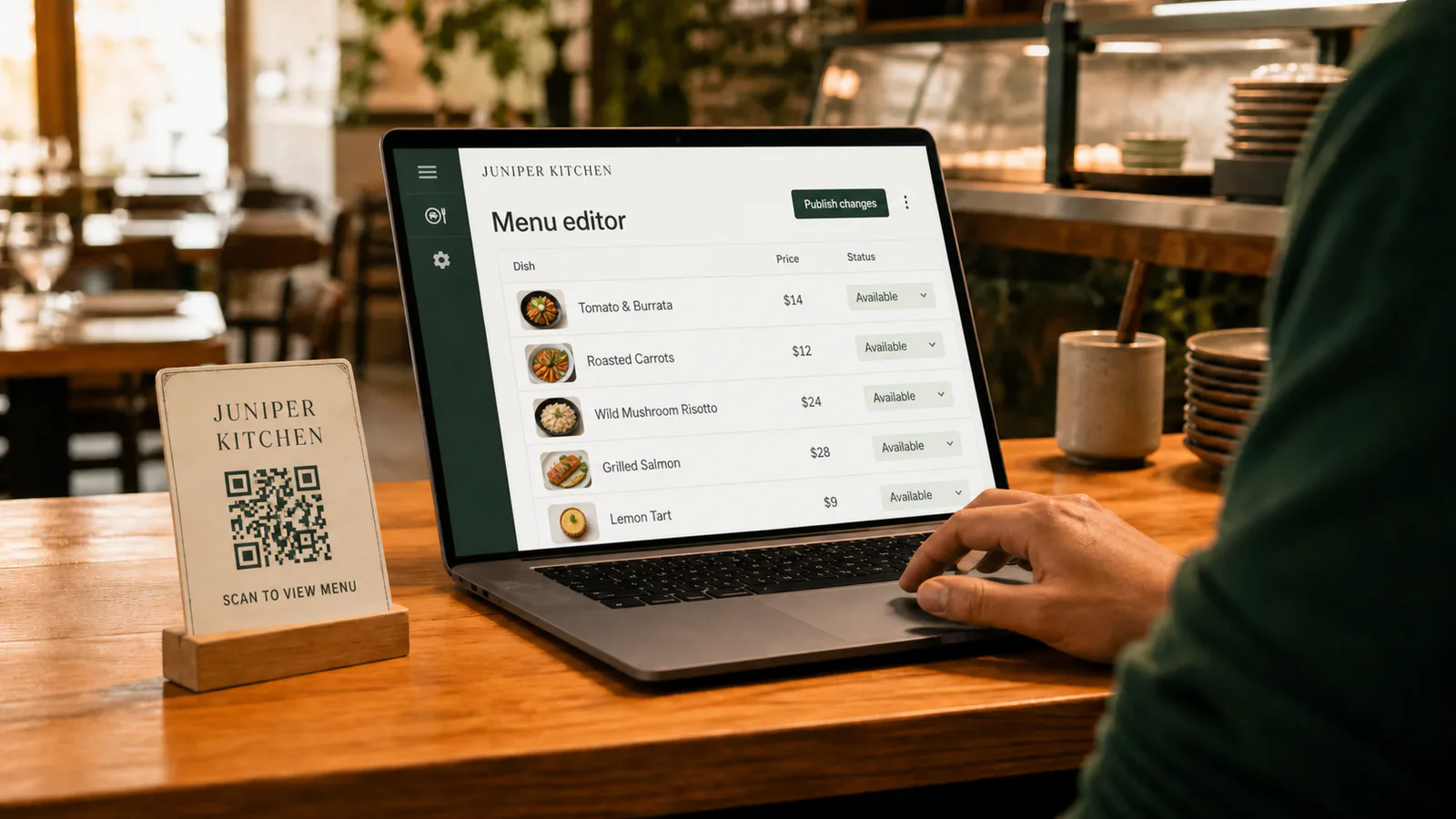
You can edit a QR menu without reprinting the code when the QR continues to point to the same public menu address. Change the content behind that address, such as a dish, price, description, category, or image, then publish and scan the existing table code to confirm the update.
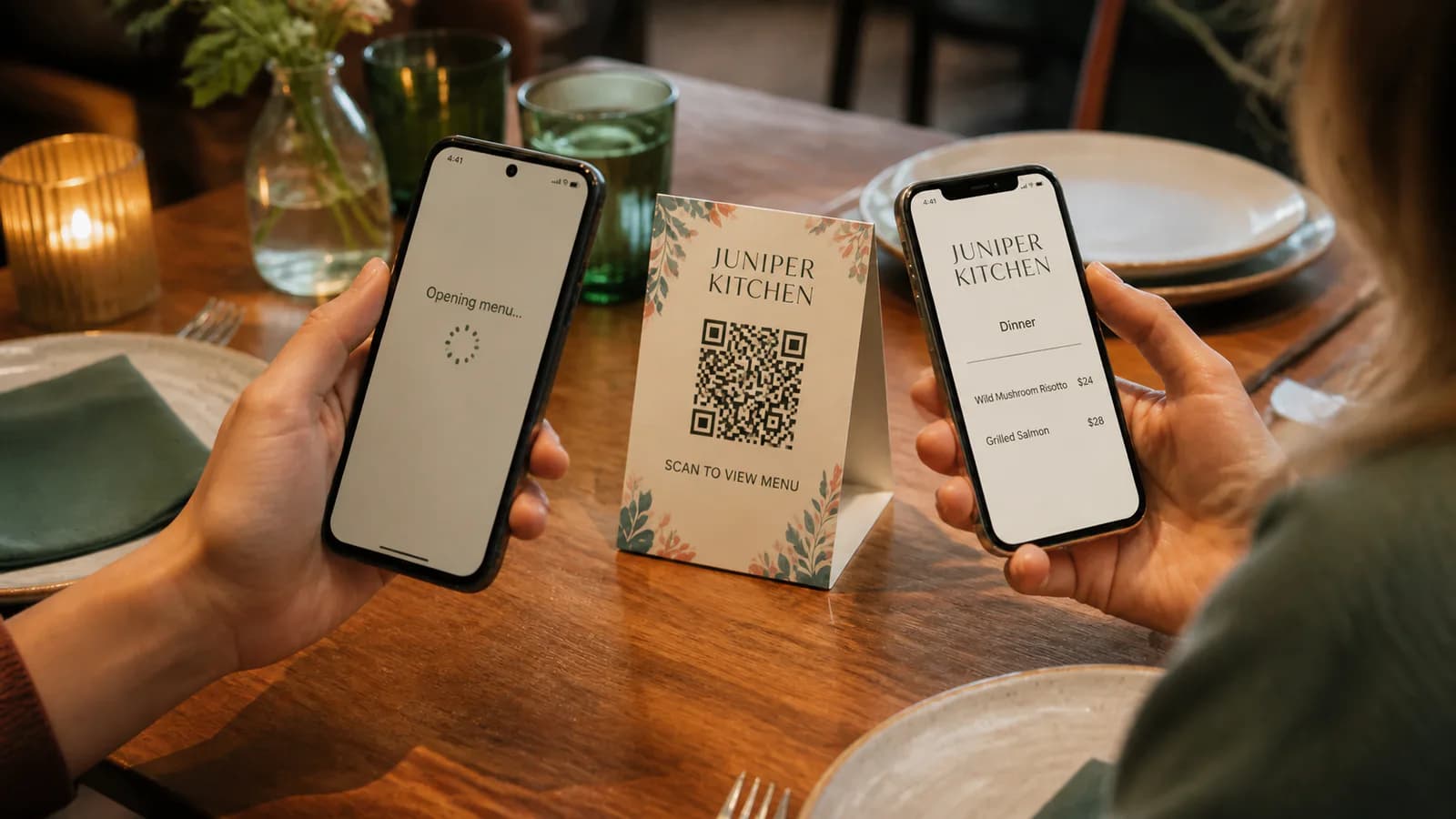
That separation is the useful part: the printed QR stores a destination, while the menu editor controls what appears there. DENSO WAVE, the company behind QR Code, describes a QR code as a way to encode data and confirms in its QR Code FAQ that a URL can be encoded. Changing the page at that URL does not inherently change the encoded URL.
A safe update routine
Use the same small release process for a price correction and a complete seasonal change:
- Open the correct restaurant and menu. Check the menu name and public address before editing.
- Make the content changes. In Qtable, editable details include categories, dish names, descriptions, prices, price variants, dietary tags, and imagery.
- Review the phone preview. Check long names, category order, currency formatting, and whether an unavailable item should be hidden or removed.
- Publish through the existing menu. Do not create a second menu merely to change content if the current public address is the one printed on tables.
- Scan the physical QR code. Test the actual card or sticker with a phone that is not signed in to the restaurant account.
- Verify the changed detail. Do not stop after the homepage loads; navigate to the edited category and compare the live value with the approved change.
The launch checklist provides a broader device, content, and print test when the update affects more than one item.
Changes that normally keep the same QR
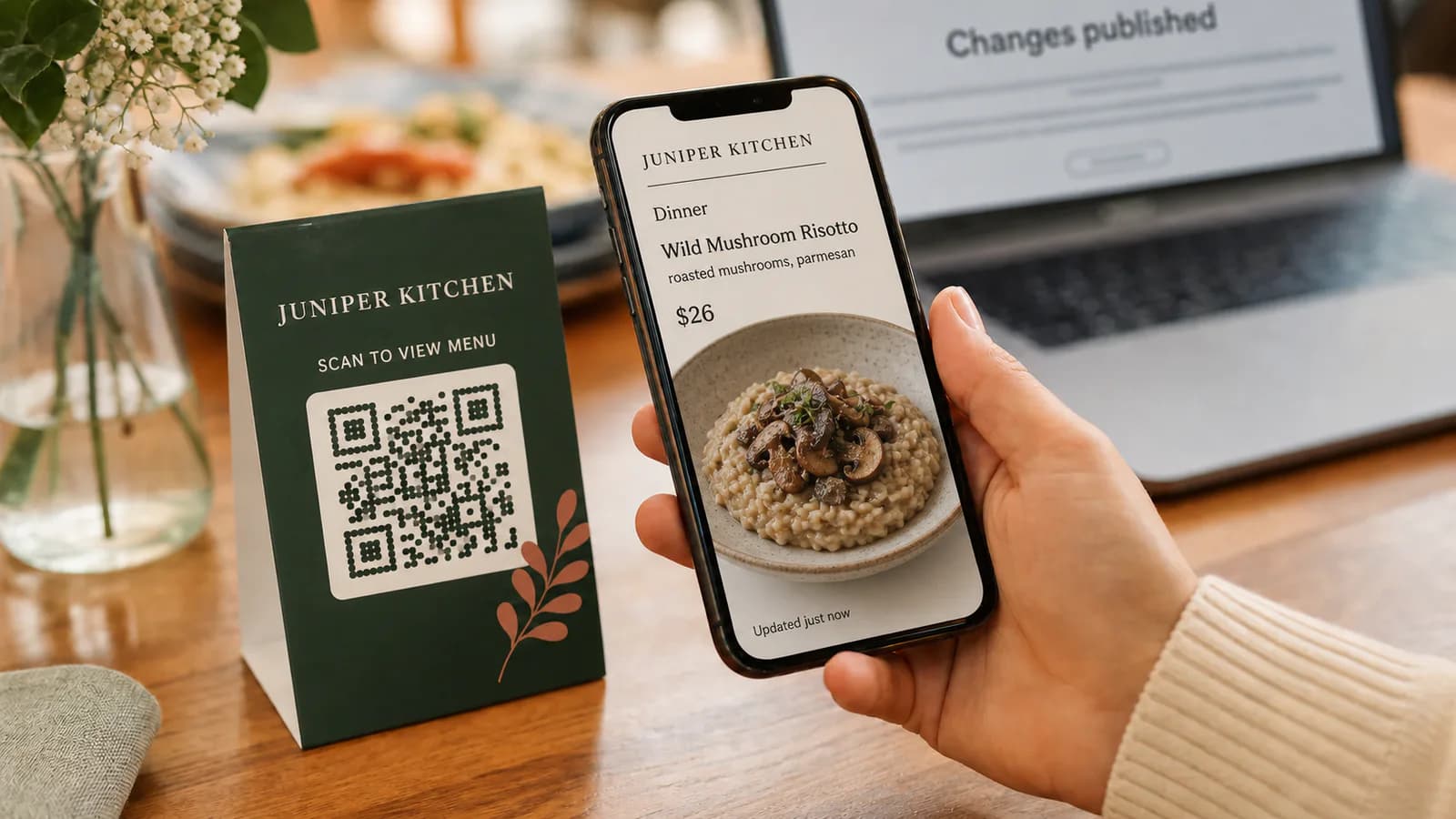
These edits happen behind the existing menu address:
- Correcting a dish name, description, or price
- Adding or reorganizing categories
- Adding a size or serving-price variant
- Reviewing or changing dietary labels
- Replacing dish, logo, or header imagery
- Changing brand colors or the menu layout
Access still matters. Qtable keeps a menu private during setup until a trial, paid plan, or other eligible access makes it public. Confirm the menu opens in an anonymous browser after any subscription or publication change.
When you should reprint the QR code
Reprint or replace it when the destination itself changes, for example, after moving to a different menu URL or domain, or when the physical code is damaged, too small, low contrast, or placed where phones cannot scan it reliably. A new visual design can also warrant replacement if nearby text incorrectly describes the destination.
Do not assume that error correction makes a poor print safe. DENSO's QR Code overview explains that the format includes error-correction capability, but your own final-size scan test is still the evidence that matters for a table card.
Build for the next update before launch
A stable QR is most valuable when the source menu is editable. If your current QR opens a fixed PDF, compare that approach with a mobile QR menu. To turn the existing file into structured content, follow the PDF-to-QR menu workflow, review the imported draft, and publish it at the address you intend to keep.
When the menu is ready, upload it to start the editable workflow. Print only after the public-address and real-phone checks pass.